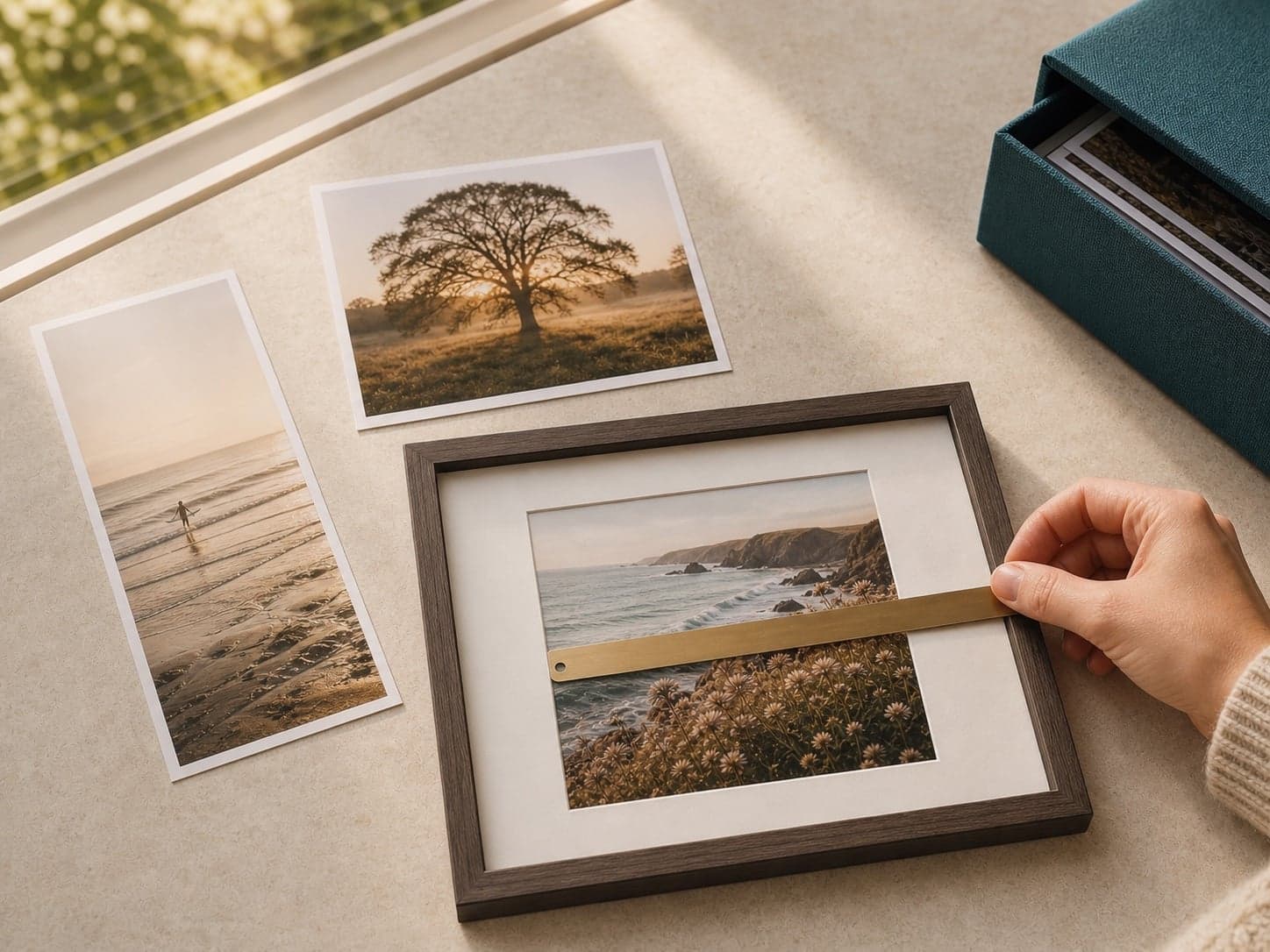
A print size and a photograph can have different shapes. The preview must either trim part of the image, leave space around it, or use a different print size.
Crop fills the paper
Crop-to-fill enlarges the photograph until the paper is covered. This can trim the long edges, so reposition the image and protect faces, hands and text.
Fit keeps the whole photograph
Fit places the entire image inside the print area. If the proportions differ, borders may appear. This is often safer for group photos, artwork and images containing words.
Choose another size when neither is right
Square, panoramic and custom formats can match the original shape more closely. A small white border can also turn a mismatch into an intentional design.
Preview every image
- Do not assume one crop setting suits a whole batch
- Check portrait and landscape images separately
- Use the original file
- Zoom in before ordering enlargements